Quantcast
Channel: blog.atwork.at - PowerShell

Working with Azure AD schema extensions in Graph PowerShell

$
0
0

Schema extensions enable to store extended custom data directly to objects in Azure AD. This article describes how to access data we defined and added in Introducing user schema extensions in Delegate365 with the Microsoft Graph PowerShell module.

Prerequisites

To work with Microsoft Graph and PowerShell, we need to install the Microsoft.Graph module as described at Install the Microsoft Graph PowerShell SDK. You can install the module in PowerShell Core or Windows PowerShell using the following command.

# https://docs.microsoft.com/en-us/graph/powershell/installation
Install-Module Microsoft.Graph -Scope CurrentUser

If you already have the module installed, check the version (currently, the latest version is '1.3.1'):

Get-InstalledModule Microsoft.Graph

To update to the latest version, run:

Update-Module Microsoft.Graph -Force

If you want to completely uninstall the Microsoft.Graph module, run Uninstall-Module Microsoft.Graph.

Connect to Graph

Once installed, we can use the Connect-MgGraph to authenticate with a user and device login to access data in the M365 tenant. The scopes define the permissions we need in our script. In this sample, we want to access User data (and eventually) Group data.

Import-Module Microsoft.Graph
# Select-MgProfile -Name "beta"
Connect-MgGraph -TenantId '<tenantname>.onmicrosoft.com' `
    -Scopes "User.ReadWrite.All","Group.ReadWrite.All"
Get-MgContext

Sign-in and copy the device code into the browser page. When you close the browser, Connect should welcome you: Welcome To Microsoft Graph!

We can check the connection with Get-MgContext. The output should look as here.

Get-MgContext

ClientId              : <someid>
TenantId              : <tenantid>
CertificateThumbprint :
Scopes                : {User.ReadWrite.All, Group.ReadWrite.All…}
AuthType              : Delegated
CertificateName       :
Account               : admin@<tenantname>.onmicrosoft.com
AppName               : Microsoft Graph PowerShell
ContextScope          : CurrentUser
Certificate           :

Looks good. Now we are ready to access the schema properties.

Get all existing schema extensions

To see how to work and how to get Schema Extensions, check out the documentation at Get schemaExtension. To get all schema extensions in the tenant with PowerShell, we can use the Get-MgSchemaExtension cmdlet with the -All parameter.

Get-MgSchemaExtension -All

We get a long list. It seems, Microsoft is using schema extension extensively. To see the properties delivered, we analyze the first element:

$SchemaExtensionList[0] | fl

Description          : sample desccription
Id                   : adatumisv_exo2
Owner                : 617720dc-85fc-45d7-a187-cee75eaf239e
Properties           : {p1, p2}
Status               : Available
TargetTypes          : {Message}
Keys                 : {}
Values               : {}
AdditionalProperties : {}
Count                : 0

The relevant properties are, of course, the Id, the Owner, the Properties and the Status. The status can be "InDevelopment", or "Available". When set to "Available", the properties can no longer be extended. In Delegate365, we use the Status "InDevelopment" to be more flexible.

Get specific existing schema extensions

To get only our own schema extensions, we need the App Id that owns the custom schema extension OR the name of the extension. In Delegate365, we can open the Delegate365 settings and get the schema extension name in the Schema Extensions section as here.
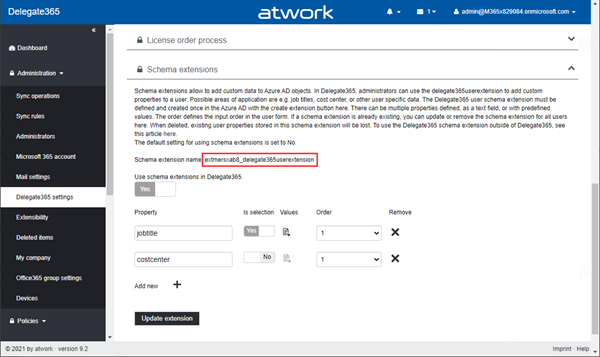
image

The schema extension name always ends with "delegate365userextension". Azure AD creates a random prefix for the name. In this sample, the generated name is "extmersxab8_delegate365userextension".

Unfortunately, the Graph (still) does not have an OData function to search with contains or endswith. Also, the cmdlet Get-MgSchemaExtension has a -Filter option - but that does not work! However, we can get all the schema extensions and filter for our own extension ourselves. So, let´s use our object and filter for our extension - adapt the search as needed.

$myext = Get-MgSchemaExtension -All | ? id -like '*_delegate365userextension'
$myext

Id                                   Description              Properties                          TargetTypes Status        Owner
--                                   -----------              ----------                          ----------- ------        -----
extmersxab8_delegate365userextension delegate365userextension {jobtitle, costcenter, favcolor}    {User}      InDevelopment a3f620a2-8418-44b6-9847-aa3db8cd37db
ext7ztddysl_delegate365userextension delegate365userextension {jobtitle}                          {User}      InDevelopment a3f620a2-8418-44b6-9847-aa3db8cd37db
extvndtvtlr_delegate365userextension delegate365userextension {jobtitle}                          {User}      InDevelopment a3f620a2-8418-44b6-9847-aa3db8cd37db

We see that our Delegate365 schema extension "extmersxab8_delegate365userextension" with it´s properties. The command also shows us the "owner". Here the owner is the Delegate365 app with the App Id "a3f620a2-8418-44b6-9847-aa3db8cd37db". Only the owner is allowed to modify the schema extension.

Side story when working with Schema Extensions in Graph: Currently, one application (in our case, the Delegate365 app) can only own up to 5 schema extensions. As of today, the Microsoft Graph API seems to have an issue here: If a new schema extension is created, it internally creates 2 or 3 schema extensions with unique names, but with the same initial properties (as we see the 3 lines above). The multiple extensions are connected: All schema extensions deliver the same data. In Delegate365, we use only the first (and created) schema extension by name. The remaining 2 are unused and cannot be deleted - another (corresponding) bug in the Microsoft Graph API. This leaves (5 - 3 =) only 2 more possible schema extensions for an app. When the next new schema extension is created, it can happen that 2 extensions are created... To make it short: The Graph API has some reproducible issues and the Delegate365 schema extension should not be removed in any case to ensure the properties can be extended in Delegate365 if needed. Therefore, removing an existing user schema extension in Delegate365 is not available. Also, the Delegate365 setup has been renewed to ensure that the Delegate365 app is never deleted and all secrets and certificates are renewed properly, when a new Delegate365 setup is executed. However, user schema extensions in Delegate365 are useful and Delegate365 works around that Graph issue.

Get users with specific data

A typical use case is to get a list of all users with a specific value set in a schema extension. For example, we want to get all users who have the favcolor set to "red", or all users who have the cost center set to "1200" or similar.

Unfortunately, there is currently no ready-to-use cmdlet available for that. So, we need to accomplish this with a Graph REST call, with a query running Invoke-MgGraphRequest (using the authentication from before) as here:

$Url = 'https://graph.microsoft.com/v1.0/users?$filter=startswith(extmersxab8_delegate365userextension/favcolor, ''red'')&$select=id,displayname&$top=2'

$result = Invoke-MgGraphRequest -Method GET -Uri $Url

The syntax for the property query is <schemaextensionname>/<propertyname> (it took some time to figure this out). The request above shows the syntax. This returns a result with all (well, the first two) users who have the property favcolor starting with "red". Note that Graph only delivers up to 100 items per page. So, we have to take care and process additional data ourselves if needed, see below.

Process the result

First, let´s check the result. This is … clumsy, as we see when we output the $result.value from the operation above.

$result.value

Name                           Value
----                           -----
id                             <userid>
displayName                    Adele Vance
@odata.id                      https://graph.microsoft.com/v2/<someid>/directoryObjects/<userid>/Microsoft.Dire...
id                             <userid>
displayName                    Bianca Pisani
@odata.id                      https://graph.microsoft.com/v2/<someid>/directoryObjects/<userid>/Microsoft.Dire...

We get a a hash table, including a hash table for each item (including the selected properties). Really? So, we need to split the data to work with the corresponding users… Also, what if we get more pages of users?

Filter and loop through all users

After we initially loaded the first page, we can follow the data in the odata.nextLink property. See more at Paging Microsoft Graph data in your app. To make it short, here´s the solution for getting all filtered users for the query to continue to work with the user id for additional steps.

# Define the first request:
$Url = 'https://graph.microsoft.com/v1.0/users?$filter=startswith(extmersxab8_delegate365userextension/favcolor, ''red'')&$select=id,displayname&$top=2'
do {
    $page = Invoke-MgGraphRequest -Method GET -Uri $Url
    # Returns a hash table, including a hash table for each item....!
    # We are only interested in the "id" and displayname property

    $page.value | ForEach-Object { Write-Host $_['id'] $_['displayname'] } 
    # Check if there are following pages
    if ($page.'@odata.nextLink') {
        Write-Host 'Loading next page…'
        $Url = $page.'@odata.nextLink'
    } else {
        Write-Host 'We got everything!'
        break
    }
} while ($true)

When we run this script, we loop through all filtered users with the page size of 2. When no more data is returned, we´re done and end the forever-loop. As output we should get all users with their id and their Displayname:

bef4b76a-289a-43bc-bad4-84ee0c5f1c12 Debra Berger
30ad21be-3f2c-4c39-87c4-fad4784cb22d Adele Vance
Loading next page…
d92c0583-4b8e-4979-abd3-be0fd7c6fa3b Bianca Pisani
We got everything!

We can now continue to work with that data and do something with the users in the ForEach-Object { <do-something> } block. Eventually, we would like to add these users to a group, send emails to these users or do similar actions.

Summary

This article demonstrates the current status of working with Azure AD schema extensions with Microsoft.Graph PowerShell. You can download the script shown above in the Delegate365 GitHub Samples here. A sample for running such a script in an Azure Automation Account and synchronizing filtered users to an email enabled security group will be added in this repository shortly. We hope this step-by-step instructions helps to automate user specific processes and to customize tasks based on custom user data.

See also:

Happy managing your M365 tenant with Delegate365 and happy scripting!

Work with the Delegate365 PowerShell in the Azure Cloud Shell

$
0
0

Delegate365 provides a PowerShell module to access data in Delegate365 in scripts. You can import the Delegate365 module locally, or use it in the Azure Cloud Shell as well. See here, how to use the module in Azure Cloud Shell.

Here, you can find a description of the Delegate365 PowerShell module. It is hosted in the PowerShell Gallery and can be easily installed. So, here´s a step-by-step guide how to use the Delegate365 PS module.

Use the Azure cloud shell

See more about the cloud shell at Overview of Azure Cloud Shell. Users who have access to _any_ Azure subscription can use the cloud shell. A user only needs a Reader permissions to a resource, but a write permission to one specific Azure Storage account for storing the user´s profile is required (see below). So, every user who has access to Azure can use the Azure Cloud Shell.

Open the Azure cloud shell here: https://shell.azure.com/

Setup your cloud shell environment (once)

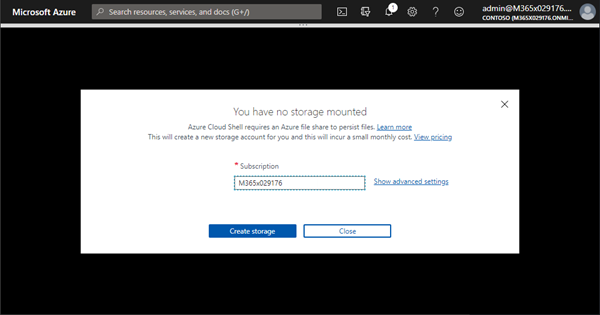
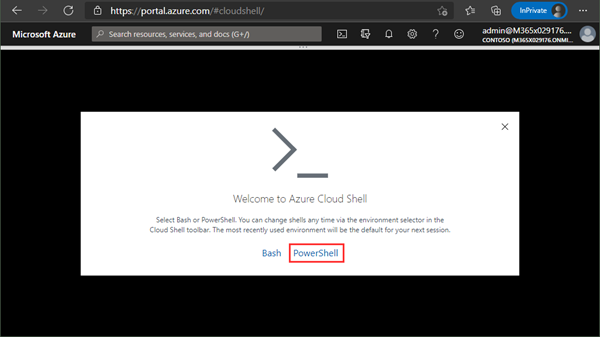
At the very first call, the cloud shell opens a wizard as here. Select "PowerShell" as environment.

image

To store the user´s profile, an Azure storage is required. The wizard asks to create a new storage at the first time the user opens the cloud shell.

image

Done.

Import the Delegate365 PowerShell module

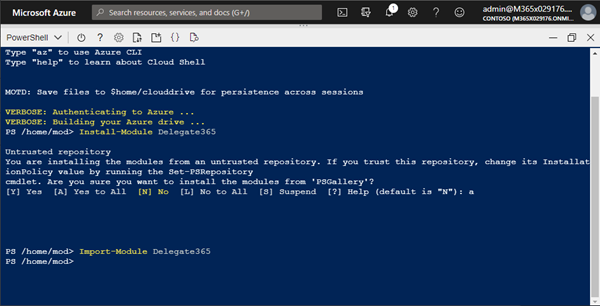
When the storage has been created, the cloud shell opens with the PowerShell environment. Now, we can import and install the Delegate365 module from the PowerShell Gallery.

Install-Module Delegate365
Import-Module Delegate365

image

The next step is to connect to the Delegate365 API. Just to mention, all operations a user is doing in Delegate365 PowerShell are protocolled.

Let´s connect to Delegate365 with your API key.

You need the Delegate365 URL and an API key. You get a user´s API key in Delegate365 as shown here. Use the Connect-Delegate365 cmdlet to connect with your data as here:

$baseUrl = https://<your-company>.delegate365.com
$apiKey = "<your-api-key>"

Connect-Delegate365 -WebApiSasKey $apiKey -WebApiBaseUrl $baseUrl

image

Use the Delegate365 cmdlets

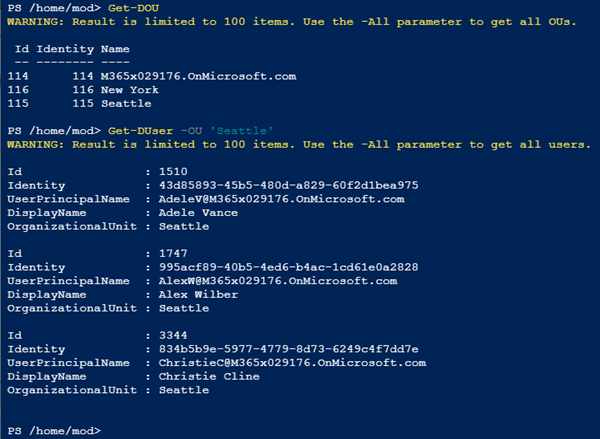
Now we can use the Delegate365 cmdlets as here:

Get-DOU

Get-DUser -OU 'Seattle'

image

See the cmdlets at https://github.com/delegate365/PowerShell.

Use VS Code in Cloud Shell

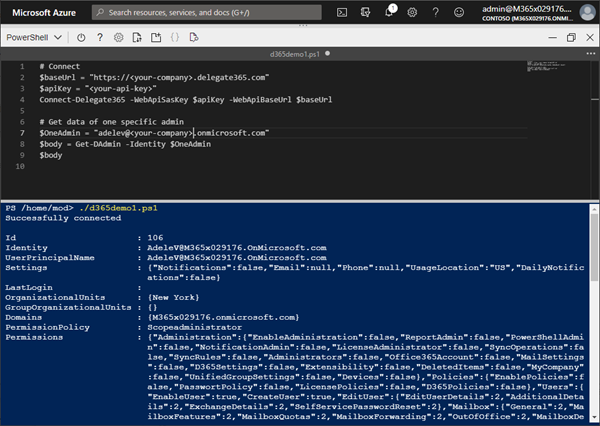
To run scripts, use the integrated VS Code editor, as in this sample here.

image

Happy scripting with the Delegate365 PowerShell module in Azure Cloud Shell!
Message Trace in Delegate365

$
0
0

When you run a message trace operation to get status information about specific emails, the result can vary, depending on time zone settings. See a sample here.

Show messages in the mail client

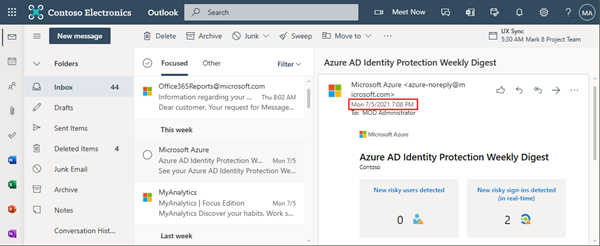
In this sample, we work with an email sent from azure-noreply@microsoft.com. In Outlook we see the timestamp at Mon 7/5/2021 7:08 PM (2021-07-05 19:08).

image

Message Trace in Delegate365

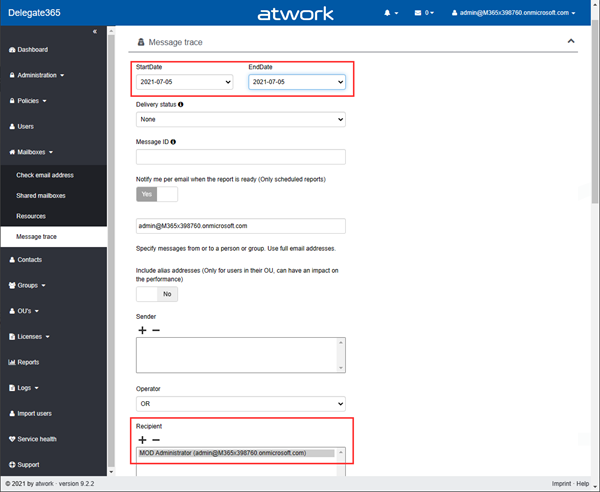
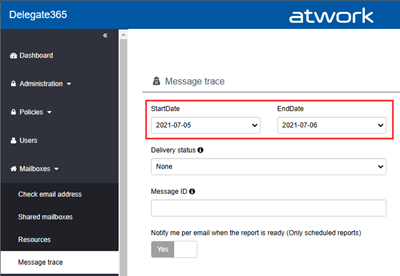
In Delegate365, admins can run a message trace to get information about the delivery status. When we run the message trace with the filter Startdate 2021-07-05 to Enddate 2021-07-05 - just this one day - and that user as recipient…

image

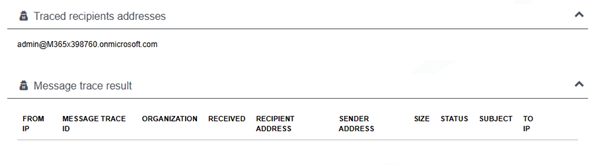
…we do not get a result. The Message trace result shows an empty list.

image

Why is that? Let´s check.

Message Trace with PowerShell

When we check with Remote Exchange PowerShell (you can also preferably use the EXO V2 module) and the Get-MessageTrace cmdlet, and an extended time frame from one day before (2021-07-04) to to one day after  (2021-07-06) as here…

$session = New-PSSession -ConfigurationName Microsoft.Exchange `
-ConnectionUri https://outlook.office365.com/powershell-liveid/ `
-Credential $cred -Authentication Basic -AllowRedirection
Import-PSSession $session -AllowClobber

Get-MessageTrace -StartDate '07/04/2021 0:00AM' -EndDate '07/06/2021 11:59PM' `
-RecipientAddress 'admin@tenant.onmicrosoft.com'

…we get two results. The second result from azure-noreply@microsoft.com is the one message we are interested in.

Received            Sender Address                           Recipient Address                 Subject                                    Status
--------            --------------                           -----------------                 -------                                    ------
06.07.2021 20:33:18 ProjectAlpha@M365x398760.onmicrosoft.com admin@tenant.onmicrosoft.com You've joined the Project Alpha group      Delivered06.07.2021 02:08:34 azure-noreply@microsoft.com              admin@tenant.onmicrosoft.com Azure AD Identity Protection Weekly Digest Delivered

We see, that the one message is not from 2021-07-05 19:08 as shown in Outlook, but from 2021-07-06 02:08. The time difference between the two dates is 7 hours. Let´s search for the reason.

Get the tenant information

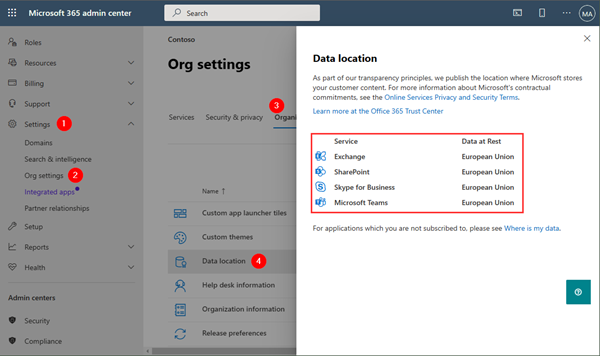
As a Global Admin, we can check the location of the Exchange Online servers in the Microsoft 365 admin center - Org settings.

image

So, the Exchange Server is located in the European Union, which means Central European Time (CET) which is UTC/GMT+1.

Check the mailbox time zone

The Delegate365 message trace did not return the same result. When we check the user´s mailbox with Get-Mailboxregionalconfiguration, we see that the mailbox settings are in a different time zone (in Pacific Standard Time, which means UTC−08:00) than the Exchange server (in Central Europe Time):

Get-Mailboxregionalconfiguration -Identity 'admin@tenant.onmicrosoft.com'

Identity             Language        DateFormat TimeFormat TimeZone
--------             --------        ---------- ---------- --------
admin                en-US           M/d/yyyy   h:mm tt    Pacific Standard Time

# To get all available time zones, we can run
Get-TimeZone -ListAvailable

The mail was delivered at 06.07.2021 02:08:34 CET, but the mailbox shows one day earlier, 2021-07-05 19:08 PST, which results in a time difference of -7 hours on the previous another day.

This is the reason, why different dates are shown, and why the message trace with the filter for one full day (2021-07-05) did not deliver that email(s).

Solution: Extend the date range in Delegate365 Message Trace

So, we add one day to the message trace filter in Delegate365. The Startdate goes from 2021-07-05 to Enddate 2021-07-06. Delegate365 always is using the full day, so in this sample, this covers 2 days.

image

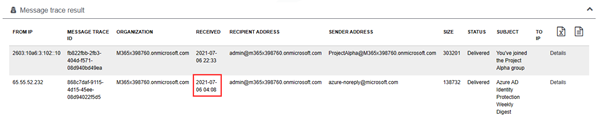
We now get the two messages, including our sample email.

image

The time here differs because of the time zones of the mailbox, the Exchange server and the client. Between the local client time (CET: UTC+1) and the mailbox time zone (PST: UTC-8), there are 9 hours difference. The email that was delivered for the user on 2021-07-05 19:08 plus 9 hours makes 2021-07-06 04:08. This is the result that is shown in Delegate365.

Summary

To ensure, to get all messages of a specific time range with message trace, add or substract one day, depending on varying time zones of the Exchange server location and the user´s mailbox, as in this sample. Check the configuration to know about such possible settings.

Also, admins can set the Exchange server time zone as described at Configure the time zone in Exchange Online, and modify the mailbox time zone with Set-MailboxRegionalConfiguration.

I hope this sample helps to clarify and to avoid unexpected results in the message trace functions.

Export email messages from Exchange Online to a CSV file with Graph PowerShell

$
0
0

I had to export email messages from a specific folder in my Outlook mailbox to a CSV file for further processing. Nothing special, just a quick export. I noticed that Outlook allows messages to be exported, but the date of the message is missing in the export file! Really? So here is a workaround to quickly export email messages using Graph PowerShell.

Why PowerShell

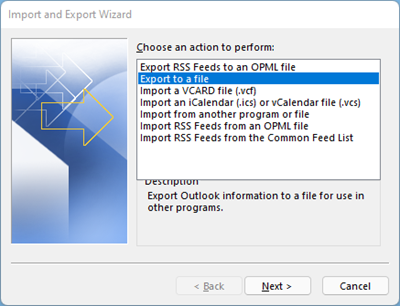
Of course there are many ways to export emails. Unfortunately, the Outlook method is unsatisfactory. When opening the File menu in Outlook for the desktop, there is an "Open & Export" menu which has an Import/Export function. Well, the wizard allows to export messages to a CSV or to a PST file.

image

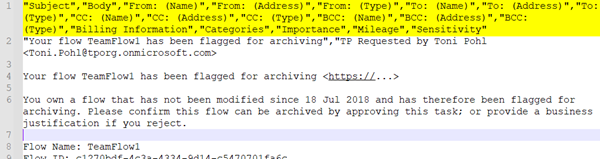
Then, the user can select a folder and export all messages to the selected file. The problem for me was, that there is no message date included… The graphic shows the first lines of such a CSV file, with the columns headers and no date. That is useless.

image

Another task was to automate the export as simply as possible. So, PowerShell, here we go.

Export with Graph PowerShell

Unfortunately, the relatively new Exchange v2 PowerShell module does not support an email messages export as far as I have seen. Knowing Microsoft Graph, this was my first choice. To automate an export, the Microsoft Graph PowerShell module came in at the right time.

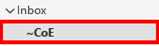
The goal was to export (almost) all messages from a subfolder "~CoE" of my Inbox:

image

While the basic idea and the script was simple, I struggled with expanding the data supplied. Thankfully, my colleague Christoph Wilfing, our PowerShell expert, supported me and did the tricky part of the elegant extraction of the multi-value properties. Many thanks, Christoph!

Here I'm just focusing on the PowerShell script, I'm running it on PowerShell Core. You can get it from my GitHub Office 365 scripts repository here, or below. For more information with details, see Install the Microsoft Graph PowerShell SDK, Get started with the Microsoft Graph PowerShell SDK, and Microsoft.Graph.Mail.

# export-messages-with-graph-powershell.ps1
# atwork.at, Toni Pohl, Christoph Wilfing

# One-time process: Install the Graph module
Install-Module Microsoft.Graph -Scope CurrentUser
# Or update the existing module to the latest version
# Update-Module Microsoft.Graph

# Check the cmdlets
# Get-InstalledModule Microsoft.Graph

Import-Module Microsoft.Graph.Mail

# Connect with Mail.Read permissions
Connect-MgGraph -Scopes "Mail.Read"

# Show the user context just as info
Get-MgContext

# get your user id - insert your own primary email address here
$user = Get-MgUser -Filter "UserPrincipalName eq '<your-email-address>'"
# Get a list of all mail folders
$folders = Get-MgUserMailFolder -UserId $user.Id -All
# Select the Inbox
$inbox = $folders | Where-Object { $_.DisplayName -eq "Inbox" }
# Get a list of all sub folders of the Inbox
$childs = Get-MgUserMailFolderChildFolder -UserId $user.Id -MailFolderId $inbox.Id -All
# Select the desired folder
$myfolder = $childs | Where-Object { $_.DisplayName -eq "<your-subfolder>" }

# Get all mails and export them (add an optional where filter if needed).
# We remove all HTML tags, repair line breaks and HTML spaces to get a readable text in the result file.
Get-MgUserMailFolderMessage -All `
    -UserId $user.Id `
    -MailFolderId $myfolder.Id | `
    Select-Object `
    @{N = 'Received'; E = { $_.ReceivedDateTime } }, `
    @{N = 'Sender'; E = { $_.Sender.foreach{ ($_.Emailaddress) }.address } }, `
    @{N = 'ToRecipient'; E = { $_.ToRecipients.foreach{ ($_.Emailaddress) }.address } }, `
    @{N = 'ccRecipient'; E = { $_.ccRecipients.foreach{ ($_.Emailaddress) }.address } }, `
    @{N = 'Subject'; E = { $_.Subject } }, `
    @{N = 'Importance'; E = { $_.Importance } }, `
    @{N = 'Body'; E = { ($_.Body.Content -replace '</p>',"`r`n" -replace "<[^>]+>",'' -replace "&nbsp;",' ').trim() } } | `
    Where-Object {( ($_.Subject -notlike "*newsletter*") -and ($_.Subject -notlike "*FYI*") ) } | `
    Export-Csv ".\mails.csv" -Delimiter "`t" -Encoding utf8

# End. Check the mails.csv file.
# Best, open it with Microsoft Excel: Menu Data, From Text/CSV and follow the wizard.

# Disconnect when done
Disconnect-MgGraph

When the script is executed, it produces (overwrites) the output file, here it´s mails.csv.

Check the result

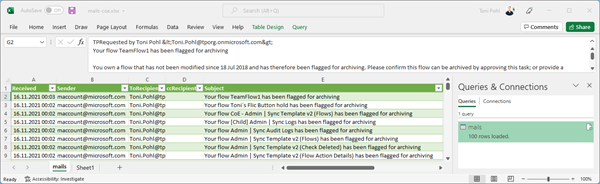
The CSV can be imported in Microsoft Excel. The output shows the relevant email messages of the exported folder (inclusive date and time). In addition, the body is clean and easy to read and we are free to modify the script and the message properties as needed.

image

As you can see, you can easily automate such exports and other email-related tasks. The Microsoft Graph PowerShell module runs with PowerShell 7 and later and it's also compatible with Windows PowerShell 5.1.

I hope this little tool saves time and is a quick fix for such use cases!

Copy a SharePoint list with PnP PowerShell

$
0
0

In the Microsoft 365 world, sometimes you want to copy a custom list in SharePoint Online to another SharePoint site in the same or in a different M365 tenant. While there are third-party tools for this, there is an easy-to-use method for such a scenario using PnP PowerShell. This article shows how it works with a step-by-step example.

PnP PowerShell

PnP PowerShell is an open-source component from Microsoft providing over 600 cmdlets that work with Microsoft 365 environments such as SharePoint Online, Microsoft Teams, and more services. We can use this simple-to-use module for our purpose. See more at PnP PowerShell overview.

In this sample, we want to copy two SharePoint custom lists from one M365 tenant to another M365 tenant and another SharePoint site. See more about SharePoint lists at Set up your SharePoint site with lists and libraries.

The Source

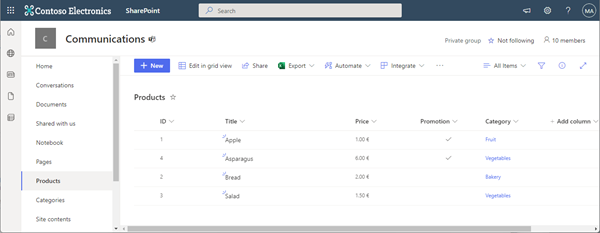
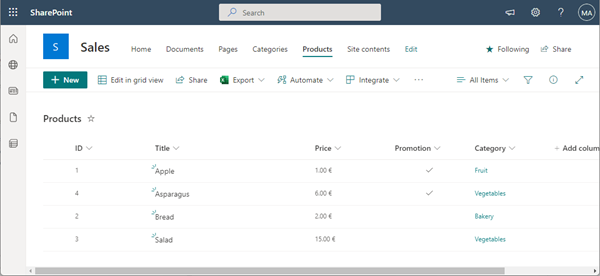
The source list on our SPO source site Communications is named Products. It´s a simple custom list with a Title, Price, Promotion and Category fields as shown here.

image

The Category is a lookup field depending on another custom list named Categories. This list only includes the category names Bakery, Fruit, Other, and Vegetables. In this sample, the Products list contains only 4 items. We want to copy both lists with the schema and the content to another SharePoint site.

Prerequisites for using PnP PowerShell

First, we need to install the PnP PowerShell module, see the documentation at Installing PnP PowerShell. We can do that once with the Install command (for the current user). The PnP PowerShell module runs in PowerShell 7 (.NET Core) and in Windows PowerShell 5.x (.NET Framework greater than 4.6).

Install-Module -Name "PnP.PowerShell" -Scope CurrentUser

Note: Before you can use PnP.PowerShell, you need to allow the corresponding Multi-Tenant app in your tenant for connecting with PnP PowerShell, as described at Connecting with PnP PowerShell. Run the PnP register command below. Otherwise, you get an error like this: "AADSTS65001: The user or administrator has not consented to use the application with ID '31359c7f-bd7e-475c-86db-fdb8c937548e' named 'PnP Management Shell'. Send an interactive authorization request for this user and resource." So, we run the register command (for each M365 tenant) once:

Register-PnPManagementShellAccess

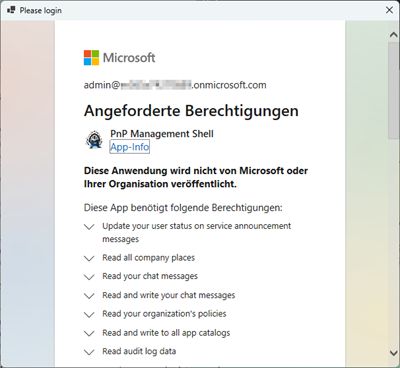
Login, and give the consent to the PnP Management Shell app. As you can see, the PnP module is large in scope and requires many permissions.

image

Accept the permissions. After that, this step is done.

Save the list source

Now we connect to the SharePoint Online source site1. In our sample, the source-sitename is Communications. Replace the placeholders with your data and use an administrator account of the source-tenant.

$site1 = "https://<source-tenant>.sharepoint.com/sites/<source-sitename>"
Connect-PnPOnline -Url $site1 -Credentials (Get-Credential)
# When using MFA, use this command: Connect-PnPOnline -Url $site1 -Interactive
Get-PnPTenantId

Get-PnPTenantId delivers the tenant-Id which is a GUID we do not use here. This only serves to check the successful login and the functionality of the loaded PnP module.

We now can read the list schemas of our two custom lists and store the data in the products.xml file as here:

$template = ".\products.xml"
Get-PnPSiteTemplate -Out $template -ListsToExtract "Categories", "Products" -Handlers Lists

Note: If we don´t add the ListsToExtract parameter, all lists are saved to the template file. It's usually a good idea to back up only the relevant lists, which is what we are doing here. Alternatively, an entire site or other components of a site can be saved with Get-PnPSiteTemplate and applied with Invoke-PnPTenantTemplate.

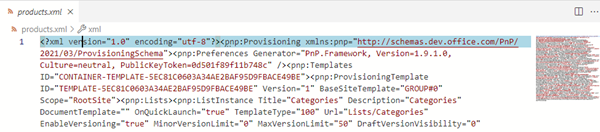
As a result, the list structure is saved in the local products.xml file, which you can examine:

image

Save the list data

If needed, you can copy the content of the lists as well with PnP PowerShell. Do this for each list that you want to copy all the data to. In our sample, we copy the Categories items (our lookups) and the Products items.

Add-PnPDataRowsToSiteTemplate -Path $template -List "Categories"
Add-PnPDataRowsToSiteTemplate -Path $template -List "Products"

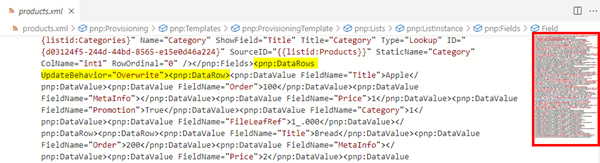
The list data is added to the products.xml file. We see the file grew in size and now contains the list schemas and the list data. VS Code understands the XML file and shows a breadcrumb where the data starts.

image

This is very useful to "copy" the full list, not only the list structure. We are done in the source SharePoint site. Let´s proceed.

Copy the list to the target site

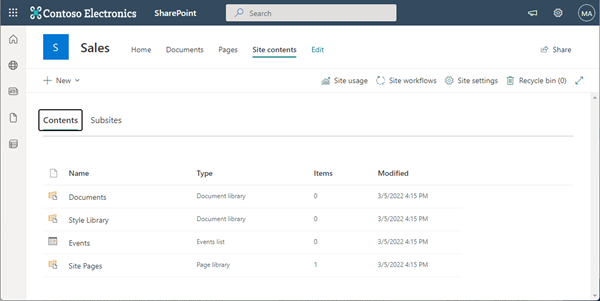
Here, we are using another M365 tenant and a brand new SharePoint Communication site named Sales. As we see, the Site contents page shows that the site is empty and only includes one Events list, but no Products or Categories list. We want to change that, use our saved data and restore the content into this target site.

image

Note that you need to run the registration command in the target tenant and also give your consent once in this other M365 tenant:

Register-PnPManagementShellAccess

When done, we can connect to the target site2 (the SharePoint site must be existing). Replace the placeholders with your data and use an administrator account of the target-tenant.

$site2 = "https://<target-tenant>.sharepoint.com/sites/<target-sitename>"
Connect-PnPOnline -Url $site2 -Credentials (Get-Credential)
# When using MFA, use this command: Connect-PnPOnline -Url $site2 -Interactive

When connected, we can run the magic Invoke-PnPSiteTemplate restore command, which is using our products.xml file:

Invoke-PnPSiteTemplate -Path $template

You can get a warning message, if the target site´s template is different than the source site. You can ignore this warning as we are only interested in our copy of the lists here.

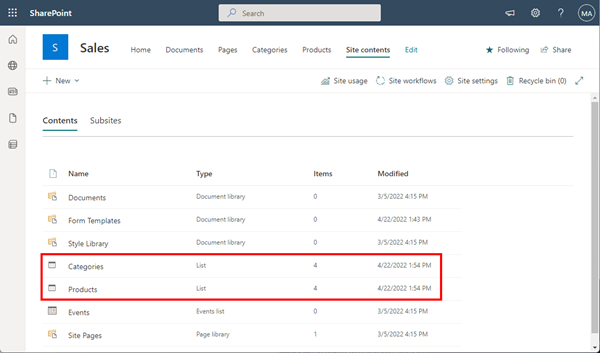
As result, we see that the two lists have been created in the SharePoint target site, including the content (4 items per list).

image

When we control the Products list, we see the copied list and the same items from the SharePoint source site.

image

Note: If you look closely, we see that Salad now costs 15.00 Euro, and not 1.50 Euro. This is dependent on the language settings. In our products.xml file, the price is stored as here:

<pnp:DataValue FieldName="Price">1,5</pnp:DataValue>

The target SPO site is in English, and does not understand the comma, but expects a decimal point. So, check the result and language settings during the migration process.

Summary

Mission accomplished, even with the lookup table. As you can see, it's very easy to copy SharePoint lists with PnP PowerShell.

Happy migrating your list content between SharePoint sites!

Create a file with specific size

$
0
0

Sometimes it is useful to create a file of a specific size to test network or internet speed or to upload it to a specific application. This is how you can create a file with a specific file size in Windows and with PowerShell.

Using the fsutil command line tool

For the start, we can use fsutil command with the file createnew option in a command prompt or in a PowerShell terminal for that purpose.

Note: You must enable Windows Subsystem for Linux before you can run fsutil. See more at the docs at fsutil (see alternatives with PowerShell below). If enabled, run the following command:

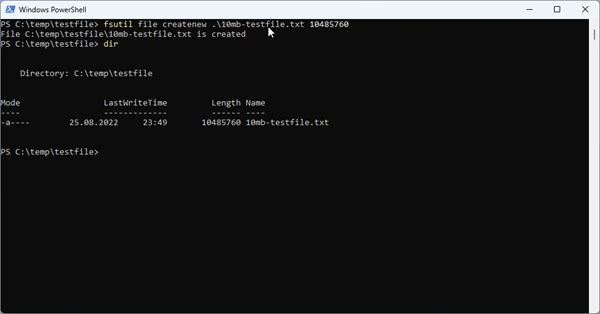
fsutil file createnew .\10mb-testfile.txt 10485760

The file size is passed in bytes:

  • 1 MB: 1024*1024=1048576
  • 10MB: 1024*1024*10=10485760
  • 100MB: 1024*1024*100=104857600
  • 1GB: 1024*1024*1024=1073741824
  • etc

The command creates a new file with the given bytes, as here.

image

The description of fsutil file informs about the functionality: Finds a file by user name (if Disk Quotas are enabled), queries allocated ranges for a file, sets a file's short name, sets a file's valid data length, sets zero data for a file, creates a new file of a specified size, finds a file ID if given the name, or finds a file link name for a specified file ID.

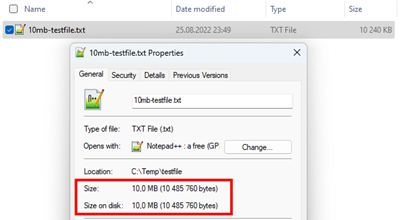
When we check, we see the created file with the specified size.

image

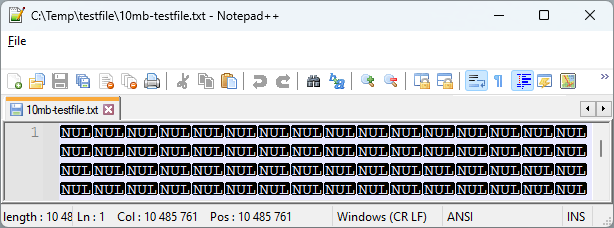
The content of the generated file is NUL (a null byte containing the value zero, or zero byte).

image

Just to mention: Of course, if we zip this file, we end up with a much smaller file because the content is perfect for zipping.

image

We need to keep this in mind if we want to use that file for data transfers. File transfer algorithms recognize and pack such files very well.

Using PowerShell method 1

Another method is using PowerShell. This is more than a one-liner, but it also does the job.

# method 1: use the file object
$file = New-Object System.IO.FileStream ".\1kb-testfile.txt", Create, ReadWrite
$file.SetLength(1kb)
$file.Close()

PowerShell understands the size values very nicely: KB, MB, GB, etc.
So, we can use 5kb for 5 Kilobytes, 10mb for 10 Megabytes, etc for the SetLength method. This is much more useable.

The file is generated containing zero bytes as before, and we get the same result.

Using PowerShell method 2

To be more flexible with the file content, we can use the following code.

# method 2: create a new test file with random content
$out = New-Object byte[] 1kb;
(New-Object Random).NextBytes($out);
[IO.File]::WriteAllBytes(".\1kb-testfile.txt", $out)

We first create a new byte array with a specific size and with null bytes, and fill it with random bytes. Then, the output is written to a file.

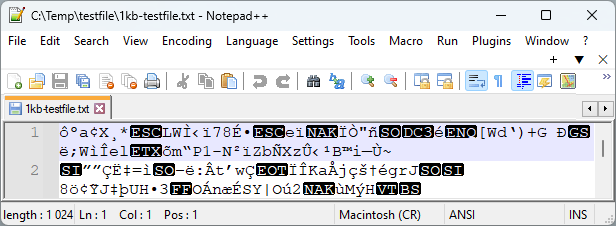
The file content no longer consists of zero bytes, but of random characters. The result can look like this.

image

This can be useful to bypass file transfer optimizations.

I hope this article will help to quickly generate files of a specific file size as needed for various testing purposes.

Replacement of MSOnline and Azure AD Powershell modules

$
0
0

I know some habits are hard to break. We still see some IT administrators using the outdated tools. We recommend admins using older Azure AD, Azure AD Preview or MS Online modules to use MS Graph modules instead. Renew your tools!

Powershell modules retirements

The discontinuation means that Microsoft is not making any investments in the outdated Powershell modules and does not make any SLA commitments beyond security-related fixes. See the details of the retirement plans here:

Important: Azure AD Graph Retirement and Powershell Module Deprecation 

In the article, Microsoft states:

  • June 30, 2023 marks the completion of a 3-year notice period for deprecation of Azure AD Graph. We will now enter the retirement cycle for Azure AD Graph APIs.
  • There will be no impact to PowerShell scripts using these legacy modules on or after June 30, 2023. They will continue to function and be supported until deprecation announcement.
  • We recognize that the legacy PowerShell modules are required for some scenarios not yet available in Microsoft Graph PowerShell SDK. Therefore we plan to deprecate Azure AD, Azure AD-Preview, and MS Online PowerShell modules on March 30, 2024. …Once these modules are deprecated, they will continue to work for a minimum of six (6) months before being retired.

Use Graph and migrate scripts

Instead, use the Microsoft Graph PowerShell SDK, and – what is also helpful in many cases - the Az PowerShell module.

Install-Module –Name Microsoft.Graph -Scope CurrentUser
Install-Module -Name Az -Scope CurrentUser

Find more about using the Graph Powershell module at  Get started with the Microsoft Graph PowerShell SDK, and an article that can help to migrate your apps to Microsoft Graph at Migrate your apps from Azure AD Graph to Microsoft Graph.

Use Visual Studio Code

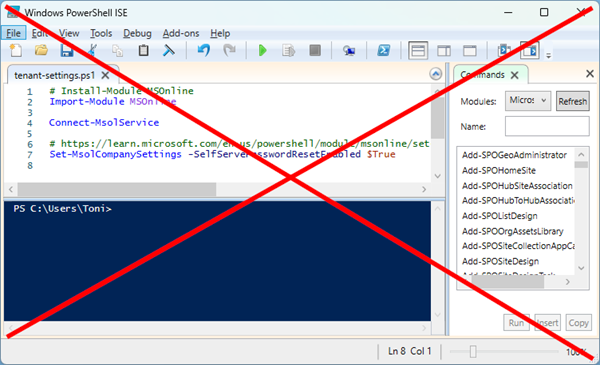
Admins, please use Visual Studio Code instead of the outdated PowerShell ISE.

image

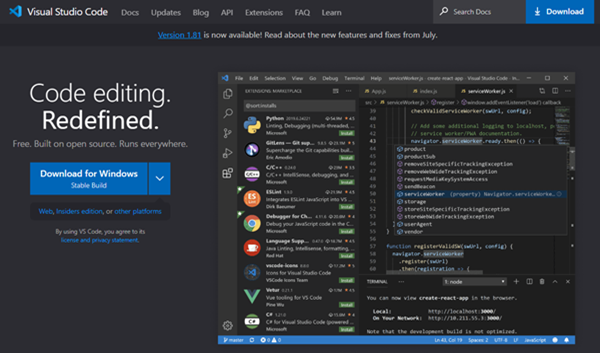
The VS Code editor is free, fast and offers many extensions (and can integrate GitHub Copilot– a great help)!

image

Admin portals

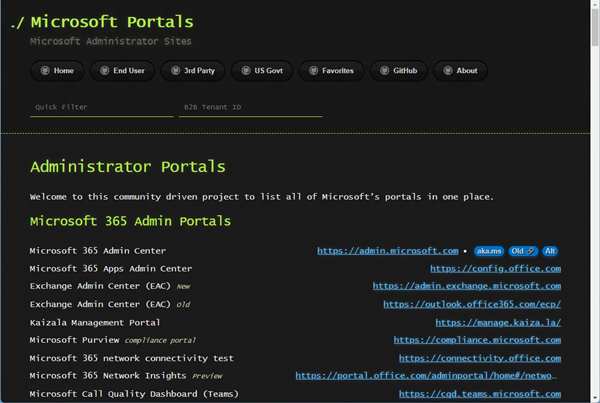
For all admins using Microsoft 365 services: Find an useful overview of all Microsoft Administrator Portals at

https://msportals.io

image

Happy administration!

Activate the sensitivity label for Groups and Sites with Graph PowerShell

$
0
0

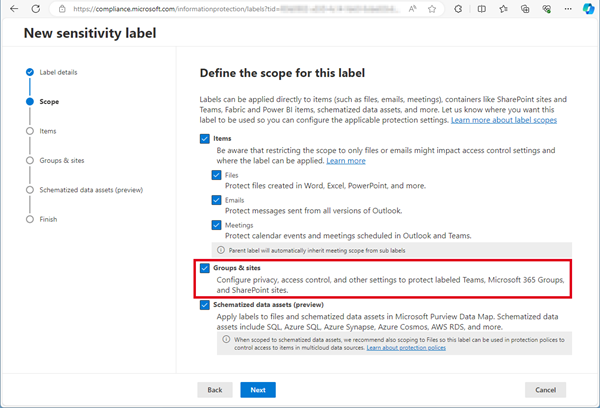
Need to activate the Microsoft 365 sensitivity labels for Groups and Sites? This must be done with PowerShell. Find the current working script here.

The article Assign sensitivity labels to Microsoft 365 groups in Microsoft Entra ID describes basically how to activate the Groups and Sites settings with Microsoft Beta Graph PowerShell: “…To apply published labels to groups, you must first enable the feature. These steps enable the feature in Microsoft Entra ID….”. My colleague Christoph Wilfing corrected and completed the script so that it optimizes module loading times and works in all cases. Thx Christoph!

The goal is that new sensitivity labels can be set with the scope for Groups and Sites in the Microsoft Purview compliance portal as here.

image

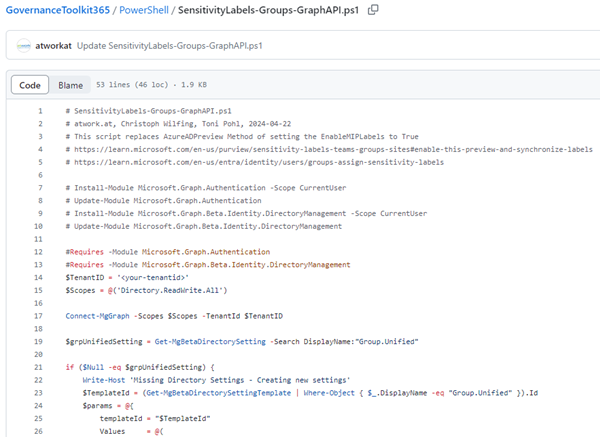
You can find the working PowerShell sample script in the atworkat/GovernanceToolkit365 repo.

image

The script works in PowerShell Core and checks whether the required EnableMIPLabels settings already exist or not with the Graph Beta Powershell command Get-MgBetaDirectorySetting. The settings are activated in both cases.

We hope this quick script helps to work with sensitivity labels in your Microsoft 365 tenant´s Groups and Sites.


Working with Microsoft Entra ID Applications – Part 1

$
0
0

Microsoft Entra ID (or Azure AD) applications are cloud-based applications that can be integrated with Azure AD for authentication and authorization purposes. Using such applications provides a way to centrally manage and secure access to your cloud-based applications and services using Azure AD identities and credentials.

This article is presented in two parts, exploring the practical implementation and functionality of apps across tenant boundaries. It provides an overview of how these apps operate and the details of permissions when used in a real-world setting.

In Part 1 we will learn how to set up and use applications within an M365 tenant, while Part 2 will demonstrate how to utilize and manage multi-tenant apps in third-party M365 tenants.

Benefits of Using Azure AD Applications

Some common scenarios where Azure AD applications are beneficial are single sign-on mechanisms for users, multi-factor authentication (MFA), conditional access policies, centralized app registration and management, and API access management. By integrating with Azure AD, your cloud-based applications and services administrators have full control over the applications and security features.

This gives service administrators full control over applications and security measures. All of this serves to secure access to data and services in the organization. You can find more about applications and management at https://learn.microsoft.com/en-us/azure/active-directory/develop/active-directory-how-applications-are-added.

Demo Setup

Let´s start with our scenarios to see how apps management is done in a M365 tenant. Here, we are using two demo tenants: In part 1 we are using a home tenant named tpe5 where the application is created. In part 2 we are using a partner tenant tpoe5 that wants to access the application.

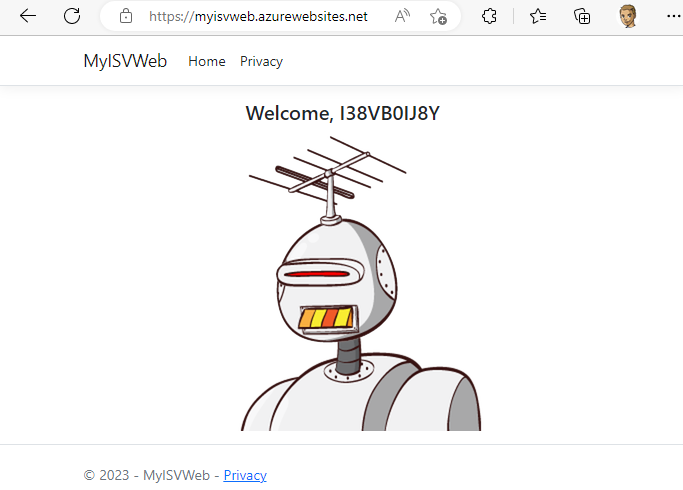
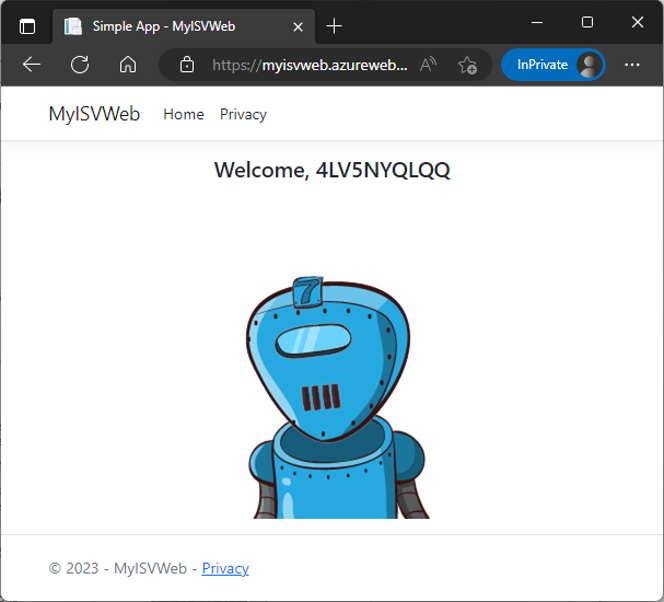
To test an application, we already have a simple web application installed that shows a random name and a random robot image with every call using a free web service from https://robohash.org. The URL to the web application is https://myisvweb.azurewebsites.net. We will use this mini website to demonstrate that the web app displays some (business) data. This web app represents our business solution, which we want to protect against unauthorized access. When we open the URL, the web app shows a random name and robot image, as shown below.

Sample website hosted in Azure App Services displaying dynamic data.

Figure 1: Sample website hosted in Azure App Services displaying dynamic data. Here it's a random name and randomly generated image of a robot using the Robohash API.

To protect this resource – this web app – we will use an Azure AD application. Only registered users shall get access to the web app. Currently, any user anywhere in the world can use this URL anonymously to access this service. In this demo, the web app itself does not check any user sign-in. It's a small dynamic dummy website that should be protected no matter what the app itself does. You can do this with any resource.

Create an App in the Home Tenant

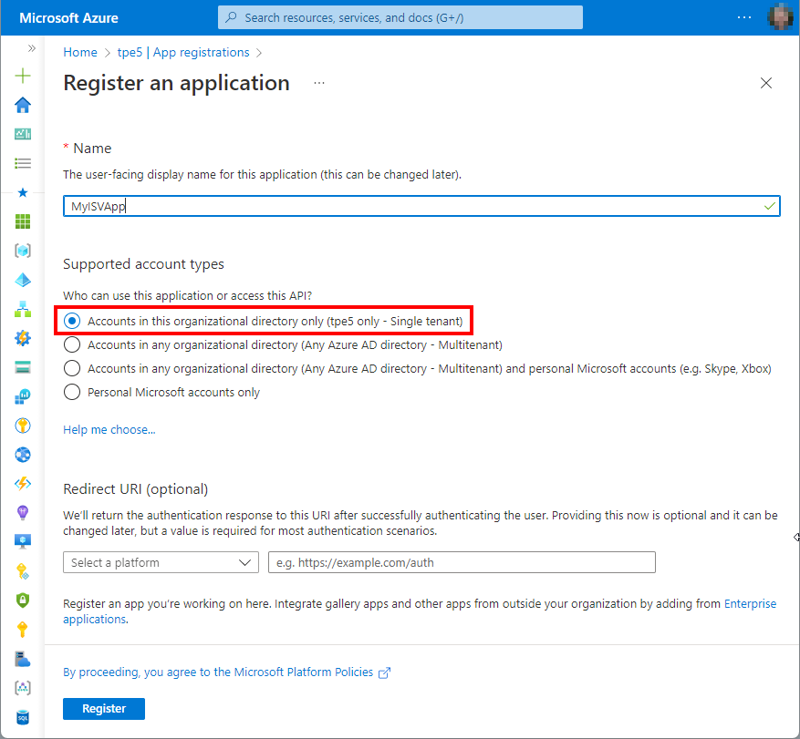
In the Azure portal, we create a new application named MyISVApp. We open https://portal.azure.com/#view/Microsoft_AAD_RegisteredApps/CreateApplicationBlade, and enter the app name. If we only want to use the app in our own Azure AD tenant, we leave the selection at the first option, “Accounts in this organizational directory only (<tenant-name> only - Single tenant)”, as shown in Figure 2.

Register a new application in Azure AD in the Azure portal

Figure 2: Registering a new application in Azure AD in the Azure portal.

After a successful login process, we want Microsoft to redirect the user to our own web app. So, we select the type Web from the dropdown and add the application URL, in our case https://myisvweb.azurewebsites.net.

One app can have up to 256 redirect URIs stored, but we currently need only two URIs. Sometimes, having many URIs makes sense, for example when developing the app with https://localhost:port, for development and test slots, and for other purposes. You can find more information about the redirect URL options online at https://learn.microsoft.com/en-us/azure/active-directory/develop/reply-url .

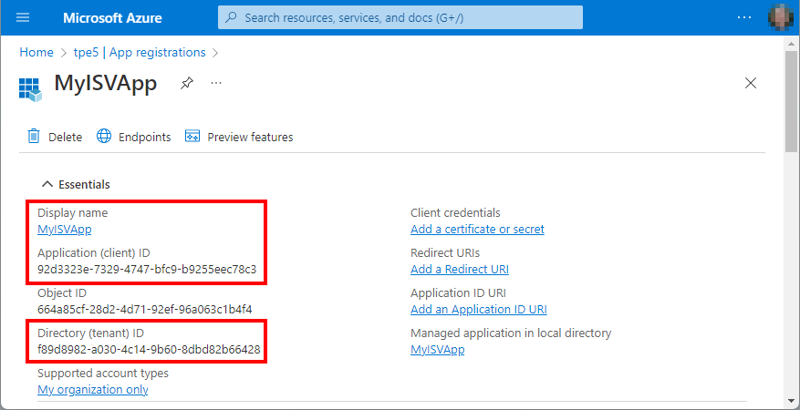
When we select Register, the app is created in our home tenant, and we see (Figure 3) the application name, App Id, and Tenant Id.

After creation, Azure shows the application details and links to configure more application details

Figure 3: After creation, Azure shows the application details and links for further application configuration.

We can change the application settings later here as well, for example when we want to add a certificate, a client secret, another redirect URI, and other application properties, as follows.

Grant Flow and Tokens

When we protect an app, after a successful sign-in, the (web) app can work with the data returned from the identity provider. Typically, in the web app, you want to identify the logged-in user, the tenant, and the permissions provided by the app. This allows the app to offer and perform certain functions depending on user login.

In our example, as mentioned, we do not process this information in the application. However, we use this sign-in flow in case the app should handle this in the future. Using this process and flow is a very common scenario.

In our case, using Azure AD and the OAuth 2.0 implicit and hybrid grant flow with our web app, we need to do two things:

  1. Add the callback redirect URI ".auth/login/aad/callback", and
  2. Retrieve the ID token on the authorize request along with an authorization code.

When we are building a web application that needs to authenticate users using Azure AD, we need to add the URI ".auth/login/aad/callback" as a redirect URI to the application registration as the callback URL for the authentication flow.

When a user tries to sign into our web application, Azure AD will redirect them to the Microsoft sign-in page to enter their credentials. After the user successfully signs in, Azure AD will redirect them back to our application's redirect URI with an authorization code or access token in the query string. The application can then use this authorization code or access token to access the user's resources in Microsoft Graph or other APIs.

By adding this URI as a redirect URI to our Azure AD application, we are telling Azure AD that our application expects to receive authorization codes or access tokens at this URI, and that Azure AD should redirect users to this URI after they have successfully authenticated. This helps ensure that only our application can receive the authorization code or access token, and that the user's credentials are not intercepted or compromised during the authentication process.

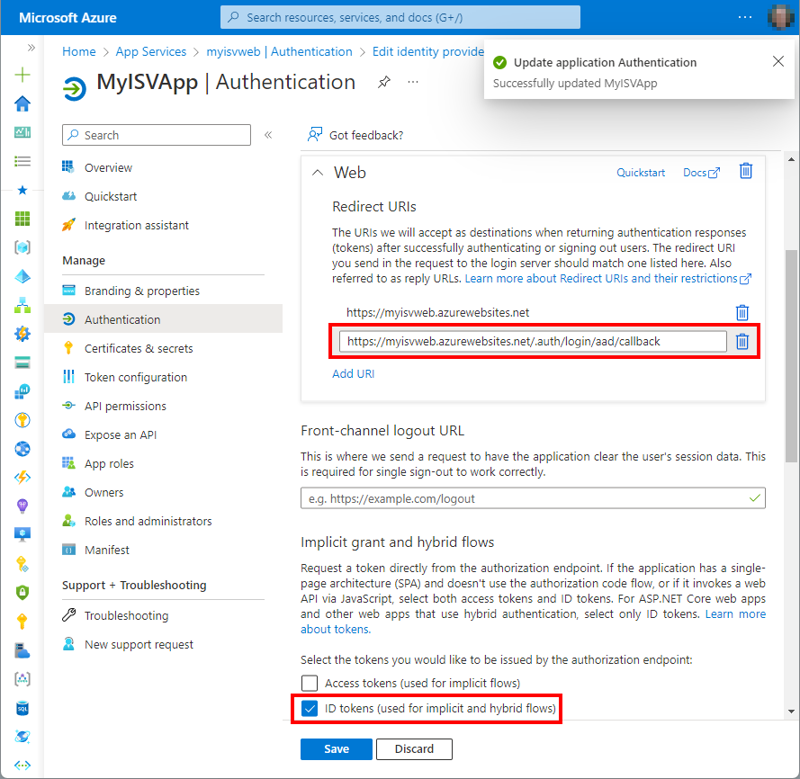
For that, we open the link right to the Redirect URIs label. We use the website URL, which is https://myisvweb.azurewebsites.net/, and add “.auth/login/aad/callback” to it. Then, we add the required Redirect URIs, and the token information, as in Figure 4. So, the Redirect URI for MyISVWeb web application is as follows:
https://myisvweb.azurewebsites.net/.auth/login/aad/callback.

Note: You should only add redirect URIs that are valid and owned by your application. Otherwise, an attacker could use an unauthorized redirect URI to intercept the authorization code or access token and potentially gain access to the user's resources. You can find out more at https://learn.microsoft.com/en-us/azure/app-service/configure-authentication-provider-aad#-option-2-use-an-existing-registration-created-separately.

Also, we want to retrieve the ID token on the authorize request along with an authorization code. Access tokens are only required for single page applications using JavaScript. Here, we only enable the ID tokens switch in the “Implicit grant and hybrid flows” section (shown in Figure 4).

Configuring authentication for an application. A redirect URI to the website and the token flow is added.

Figure 4: Configuring authentication for an application. A redirect URI to the website and the token flow is added.

This ensures that for the implicit and hybrid grant flow, the tokens will be delivered from the identity provider and our app will be able to work with the token data. Then, we select Save.

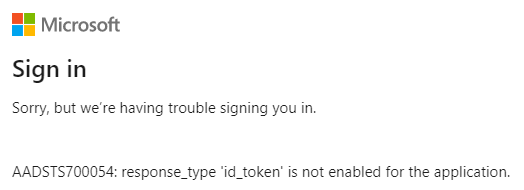
Note: The flows control the passing of the token depending on the type of application. If we want to use the app in this scenario, we must provide the ID tokens information. Otherwise, the Azure AD would inform us that the token is missing in our authorization flow, as shown in Figure 5.

Missing token message if the implicit grant flow is used that expects an ID token from the /authorize endpoint

Figure 5: Missing token message if the implicit grant flow is used that expects an ID token from the /authorize endpoint.

You can find more about the application flow details at https://learn.microsoft.com/en-us/azure/active-directory/develop/v2-oauth2-implicit-grant-flow , and a description at https://learn.microsoft.com/en-us/azure/app-service/configure-authentication-provider-aad#-step-1-create-an-app-registration-in-azure-ad-for-your-app-service-app .

With that, the basic app settings are done. The users should be able to login with this application and their user credentials. We'll try that later.

Add Application Permissions

Each app automatically has permissions to sign in as a user, which is the delegated User.Read permission in the Microsoft Graph API. There are two types of application permissions:

  • Delegated permissions are granted to an application to act on behalf of a user. These permissions are typically used for scenarios where the application needs to access resources owned by the user, e.g., his email, calendar, contacts, teams, etc.
  • Application permissions are granted to an application to act on its own behalf without a user context. These permissions are typically used for scenarios where the application needs access to resources that are not tied to a specific user, e.g., to access data in a database or a scheduled task that runs every night and processes data without any user interaction.

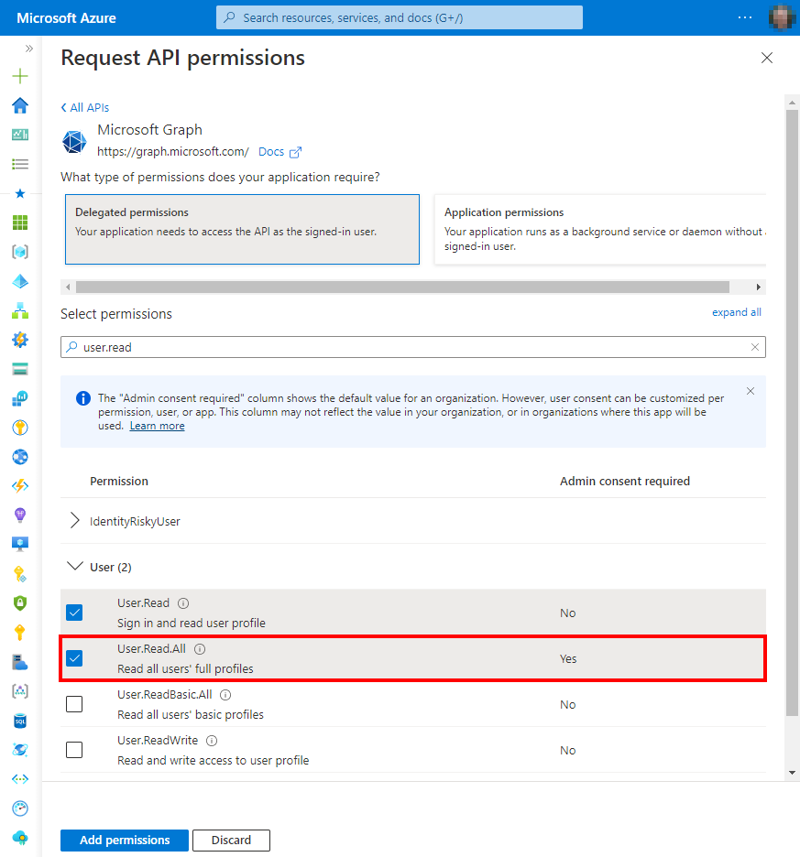
Just for our demo, we add another delegated permission for Microsoft Graph for the app to access the profile information of all users in the tenant. We add User.Read.All, as shown in Figure 6.

Adding API permissions to the application. User.Read is selected by default. We add the delegated permission User.Read.All here.

Figure 6: Adding API permissions to the application. User.Read is selected by default. We add the delegated permission User.Read.All here.

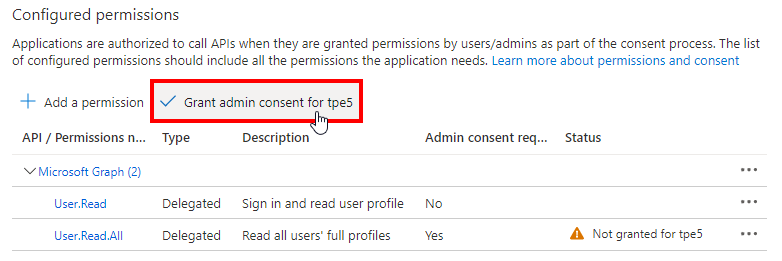
We see that this permission requires an admin consent. This is the case for many permissions, depending on the security impact of the feature. After selecting Add permissions, the admin needs to select Grant admin consent for <tenant> (Figure 7) and to confirm.

Depending on the required permissions, the admin needs to grant the consent for the application.

Figure 7: Depending on the required permissions, the admin needs to grant the consent for the application.

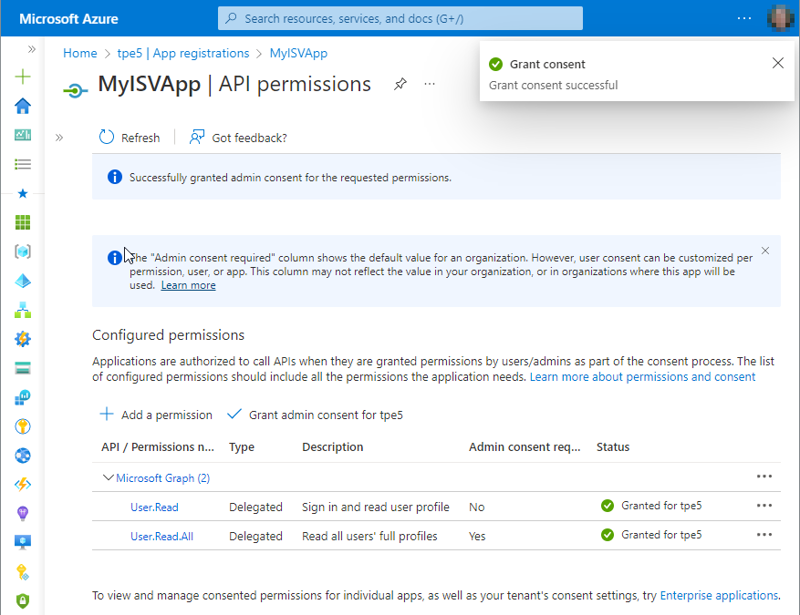
When done, we see in Figure 8 the green status Granted.

If the administrator has confirmed the permissions, they are available for the application.

Figure 8: If the administrator has confirmed the permissions, they are available for the application.

Protect the (Web) Application With Azure AD

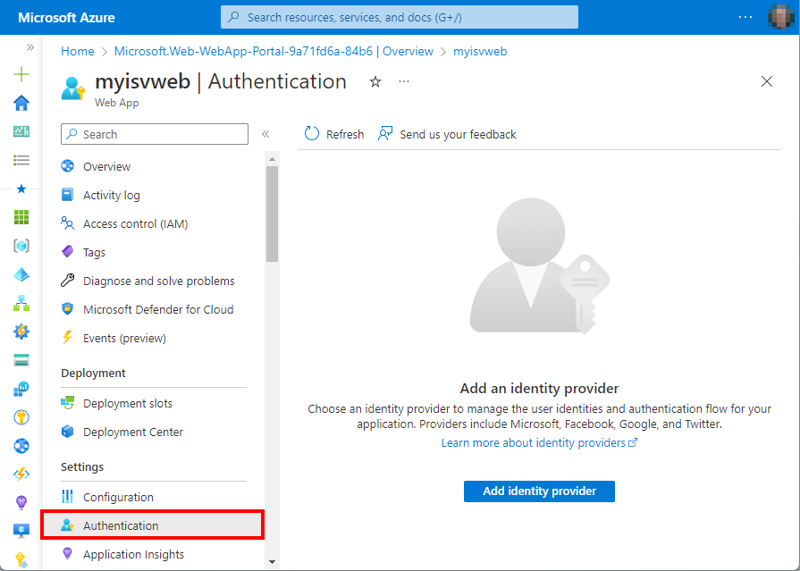
In our demo, we want to protect an application that is running in an Azure App service as a website. Azure makes that easy. We open the web app in the Azure portal, go to Authentication, and select Add identity provider (Figure 9).

Adding authentication to a website.

Figure 9: Adding authentication to a website.

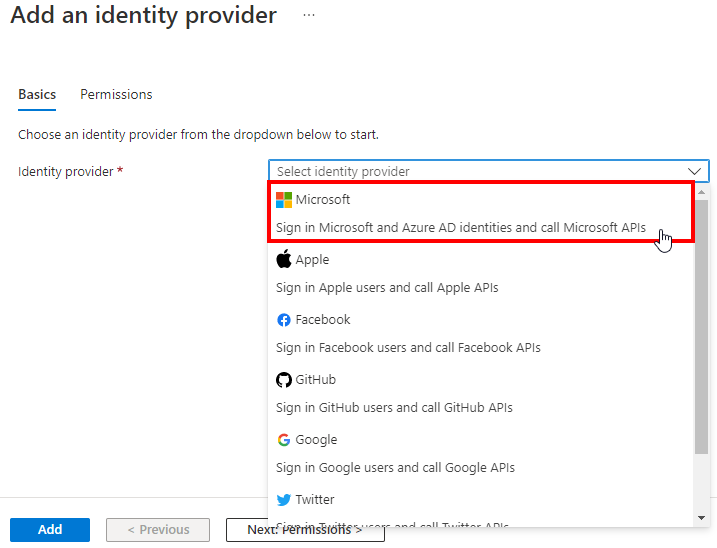
As we see in the identity providers list (Figure 10), there are other identity providers we can use. In our sample, we want to use Azure AD, so we select Microsoft.

Select Microsoft as Identity Provider.

Figure 10: Select Microsoft as identity provider.

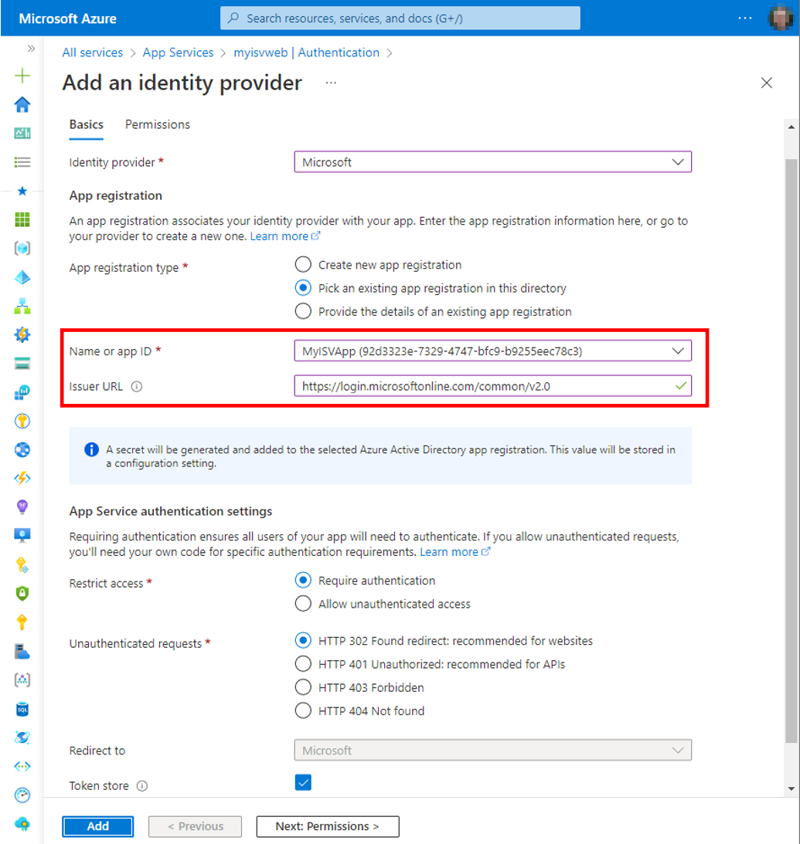
After that selection, we see a bunch of options to choose from. We select our existing app MyISVApp, for Restrict access, we select Require authentication and indicate from the list how to react to Unauthenticated requests, as shown in Figure 11.

Select an existing application - or a new application - to authenticate to the website.

Figure 11: Select an existing application - or a new application - to authenticate to the website.

Note: In the form, there is an Issuer URL field. In a single tenant scenario, this field is automatically filled out with the ID of the Azure AD from which users should be allowed to authenticate in our application. The consequence is that users from other tenants are denied access. Therefore, for switching to a multi-tenant app later, we must remove the prefilled Issuer URL, or replace the content by the Issuer URL “https://login.microsoftonline.com/common/v2.0” (the common endpoint that allows a sign-in for all M365 tenants) for the app to authenticate and to work.

We then select Add. This operation automatically creates an app secret and adds the generated value in the application settings of the web in a key named MICROSOFT_PROVIDER_AUTHENTICATION_SECRET. With the client secret, the hybrid flow is used, and the App Service will return access and refresh tokens. You can find a detailed description at https://learn.microsoft.com/en-us/azure/app-service/configure-authentication-provider-aad.

The web app is now protected by Azure AD. Users must authenticate to open the web app.

Test Sign-in of Your Home Tenant as Administrator

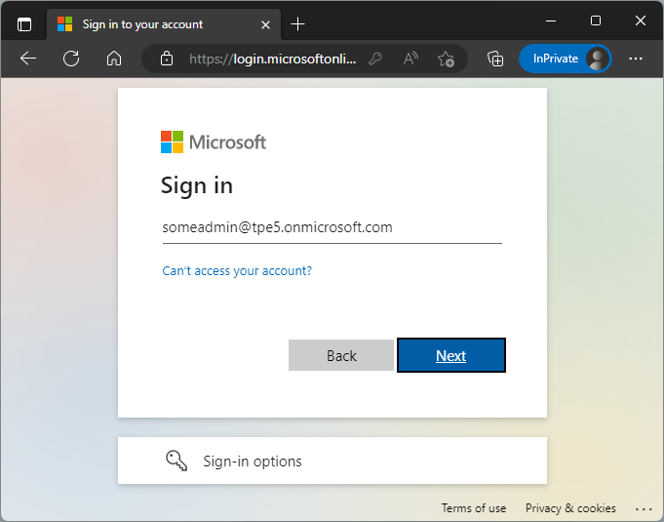
It´s now time to test the application protection in our home tenant. First, we try it as a Global Admin, and open the web app URL at https://myisvweb.azurewebsites.net. As we see in Figure 12, the application protection redirects to the Microsoft sign-in page. We need to sign in with the user and the password (and MFA, if configured).

Sign in to the website with an admin account.

Figure 12: Sign in to the website with an admin account.

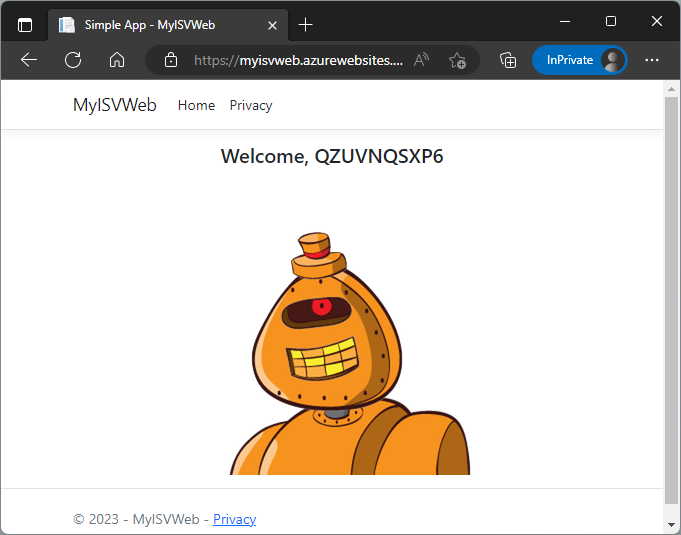
After the successful login, the redirection works, and the web application follows. We enter the web application at https://myisvweb.azurewebsites.net , and we can see some (random) data, as shown here in Figure 13.

After successful login, the website displays its content to the user.

Figure 13: After successful login, the website displays its content to the user.

The website opens, and we see a different generated name and image.

Sign in as User in the Home Tenant

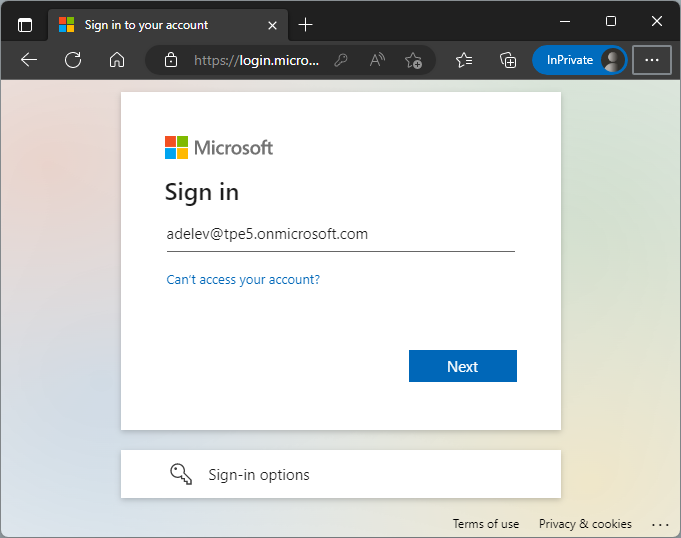
Now we close the browser, reopen it in InPrivate mode, and sign in as another user of the home tenant (Figure 14). Here, we sign in as AdeleV@tpe5.

Sign in to the website with a user

Figure 14: Sign in to the website with a user.

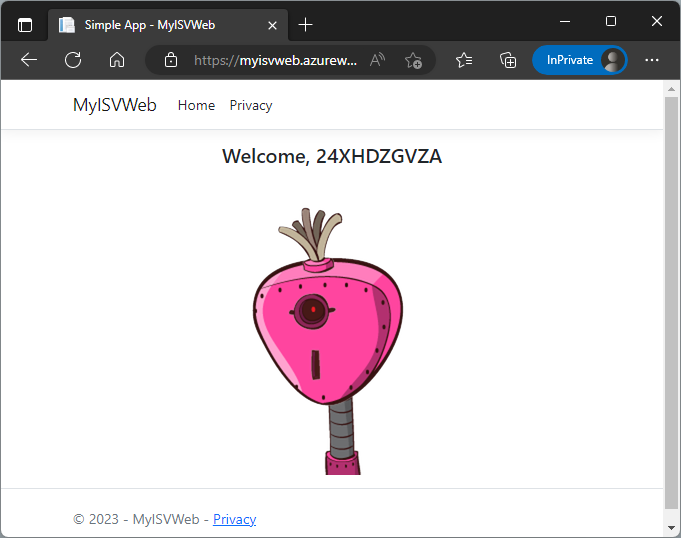
And it works, as shown in Figure 15.

Another successful sign-in to the website as a user

Figure 15: Another successful sign-in to the website as a user.

Why is that? Well, the Global Admin has granted all required permissions to this application. This works for all users in the home tenant.

Application Access for Anonymous Users

Anonymous users cannot access the web application. Now there is a login process in front of it.

Application Access for Users With a Microsoft Account or From Another M365 Tenant

Ok, so how does it work for users from another tenant, or for users with a personal Microsoft Account (MSA)?

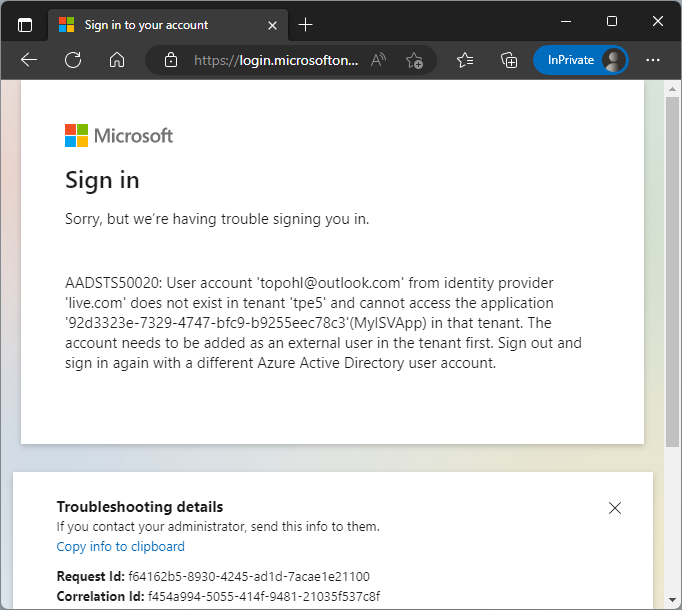
When we try to sign in with a different account of the home tenant – here with a MSA like someuser@outlook.com, we get a corresponding error message (Figure 16), saying “Sorry, but we’re having trouble signing you in. AADSTS50020: User account '<accountname>' from identity provider '<providername>' does not exist in tenant '<home-tenant-name>' and cannot access the application '<app-id>' (<app-name>) in that tenant.” as shown in Figure 16.

An unsuccessful attempt to log in as an unknown user

Figure 16: An unsuccessful attempt to log in as an unknown user.

So, the app is currently only available for users in our home tenant.

Application Access with a Guest Account

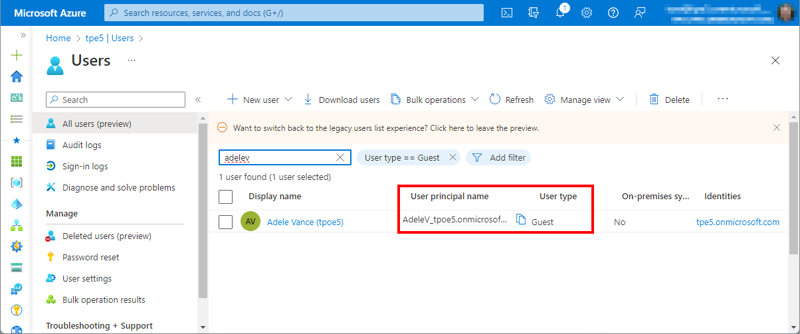
How does this work for users that have a guest account in the home tenant? We add a user from another M365 tenant as a guest to our home tenant (Figure 17). The guest user is AdeleV@tpoe5– a user with a work account from a different M365 tenant.

Adding a guest user to our own Azure AD

Figure 17: Adding a guest user to our own Azure AD.

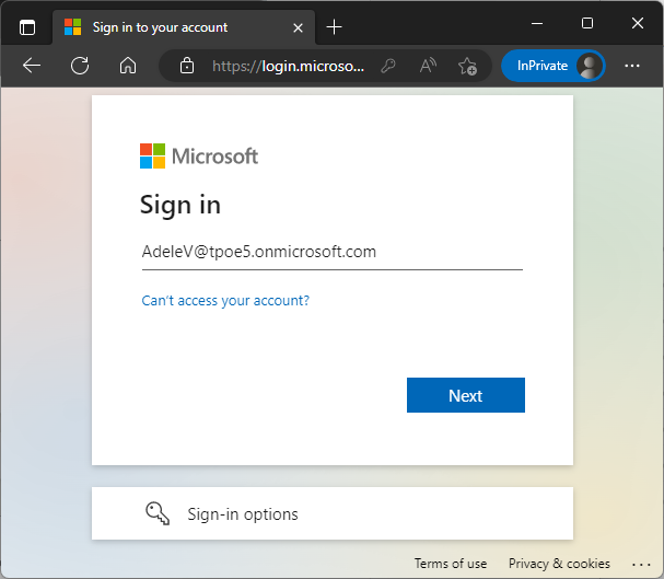
Now, we try to open the web app at https://myisvweb.azurewebsites.net/ as AdeleV@tpoe5 (Figure 18):

Sign in to the website as a guest user of our Azure AD tenant.

Figure 18: Sign in to the website as a guest user of our Azure AD tenant.

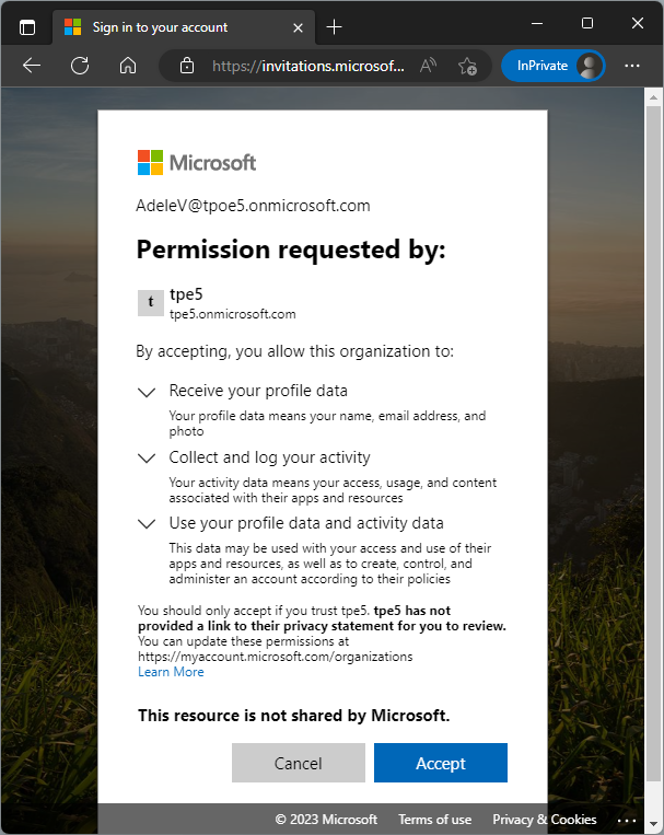
After successful login, the user gets a permission request from the app (Figure 19). The notification informs about the required permissions of the MyISVWeb in the home tenant for the user account.

User Consent to Application Permissions

Figure 19: User Consent to Application Permissions.

This request follows an all or nothing principle: If the user trusts the app, he/she must accept all requested permissions. Otherwise, the app cannot be used.

Note: By adding more application properties, like a privacy statement URL, and eventually a Microsoft Partner Id, the app is shown as a trusted app without the warnings shown above.

When accepted, the web app follows, as shown in Figure 20.

The website is shown for the authenticated (guest) user.

Figure 20: The website is shown for the authenticated (guest) user.

So, guest users in the home tenant can access the application as well. The permission requests follow only at the first start. Once the app has been accepted, no further permission requests will follow.

Summary

This article describes how to set up and manage applications in a Microsoft 365 tenant, with a particular focus on how Azure AD applications can be used to provide secure access control to data and services. The demo includes a secured web application and shows how to create an Azure AD application in the home tenant (in your organization) and add redirect URIs for the authentication flow. The article shows the importance of integrating with Azure AD for centralized app registration, management and security measures.

In part 2 we look at how using and managing a multi-tenant app works in foreign M365 tenants.

Streamlining Automation: Integrating Scripts with Logic Apps

$
0
0

Calling scripts from an Automation Account in a Logic App is particularly useful when the tasks to be performed are too complex to implement directly in a Logic App. It is also useful when scripts need to be reused multiple times without rewriting them in each Logic App. See how to enhance your Logic Apps with Automation Account Scripts.

Such an integration allows for centralized management and updating of scripts to ensure consistency and maintainability. Finally, it is useful when advanced functions and modules available in PowerShell or Python are needed.

Follow these steps to call a script in an Automation Account from an Azure Logic App:

  • Create an Azure Logic App. For testing, an HTTP trigger is sufficient. No further actions are needed initially. Save the Logic App, for example, with the name "Run-Script."

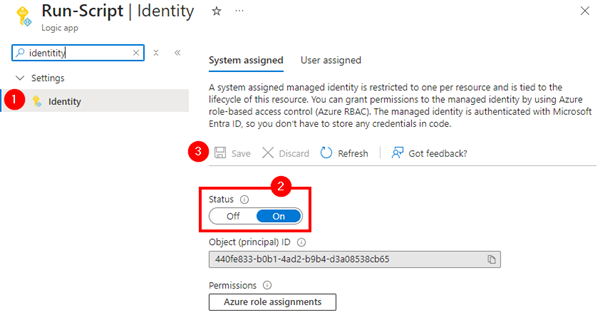
  • Enable the System assigned Managed Identity for this Logic App in the Identity menu.
    AA-Bsp20-LogicApp-Identity

  • Create the script in the Automation Account. Parameters are usually passed to the script, and the script may return a result. You can use the following script as a framework.

  # PowerShell Demo Script in Automation Account
# Run this script from an Azure Logic App with the action "Create job" and a Managed Identity

param (
[String]$myparam
)

Write-Output "myparam: $myparam"
# Do something...
$out = "The result of this script run with $myparam"

return $out
  • Customize the script and then click the Publish button to activate it. We do not need a webhook but start the script via a custom Logic-App action.

  • Authorize the Logic App to start the script. Authentication is done via the Managed Identity. In the Automation Account, select the Access control (IAM) menu, click Add, and then Add role assignment.

  • Search for "automation" and select "Automation Operator." This role allows, among other things, to start scripts. So we are adding permission to start a script in the Automation Account.
    AA-Bsp21-Add-Automation-Operator

  • Select "Managed identity" in the Assign access to section and then click "Select members.".

  • In the right pane, select the subscription, "Logic app," and the Managed Identity of your Logic App. In this example, the Logic App is called "Run-Script." After selection, click "Select."
    AA-Bsp22-Select-Managed-Identity

  • Confirm the assignment with "Review + assign," and again to create it. This grants permission for the Logic App.

  • Open the Logic App editor and add an action after the trigger. Search for "automation" and select the "Create job" action from the "Azure Automation" group.
    AA-Bsp23-Add-create-job

  • Select the location of the Logic App. This includes subscription, resource group, automation account, and of course, the script to be started and any parameters.
    AA-Bsp24-Create-job

  • Decide whether the Logic App should wait for the script result or not. "Wait For Job" controls this behavior. If you want to work with the script result, set this to "Yes."

  • Setting the properties creates a new API connection "azureautomation" with the Managed Identity in the resource group. This can be used for further actions and Logic Apps as usual.

  • Optionally, process the result further, for example, in a variable or similar actions.

  • Configuration is complete. When you start the script, you should see the success of the action in both the Logic App and the Automation Account script.
    AA-Bsp25-Job-run

  • The returned Job ID is the key to obtaining further data from the script's runtime environment, such as a returned value.

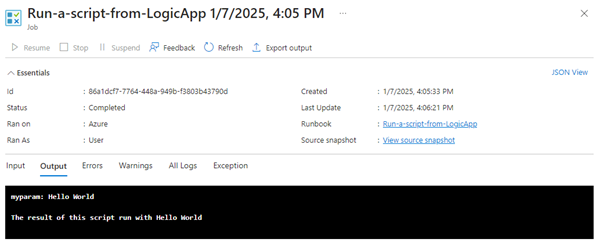
  • In the Automation Account, you will see the output—if the script provides one—the runtime, success, and other runtime data. Any script errors will also be displayed in the exceptions.
    AA-Bsp26-Job-run-AA

With this example, you can establish the connection between Logic Apps and scripts, for example, to use scripts with Azure or M365 PowerShell modules and similar. Using scripts can thus simplify automated tasks.

Note that calling a script from another resource may take a bit longer until it is available and the script has been processed. Like other actions in Logic Apps, timeouts and asynchrony can be set for the Create job action, as well as waiting for the script result.

Happy coding!